RAM
Desktop RAM vs laptop RAM
Understand U-DIMM and SO-DIMM differences, then verify DDR generation, capacity, CPU and system support.- Published
- Updated
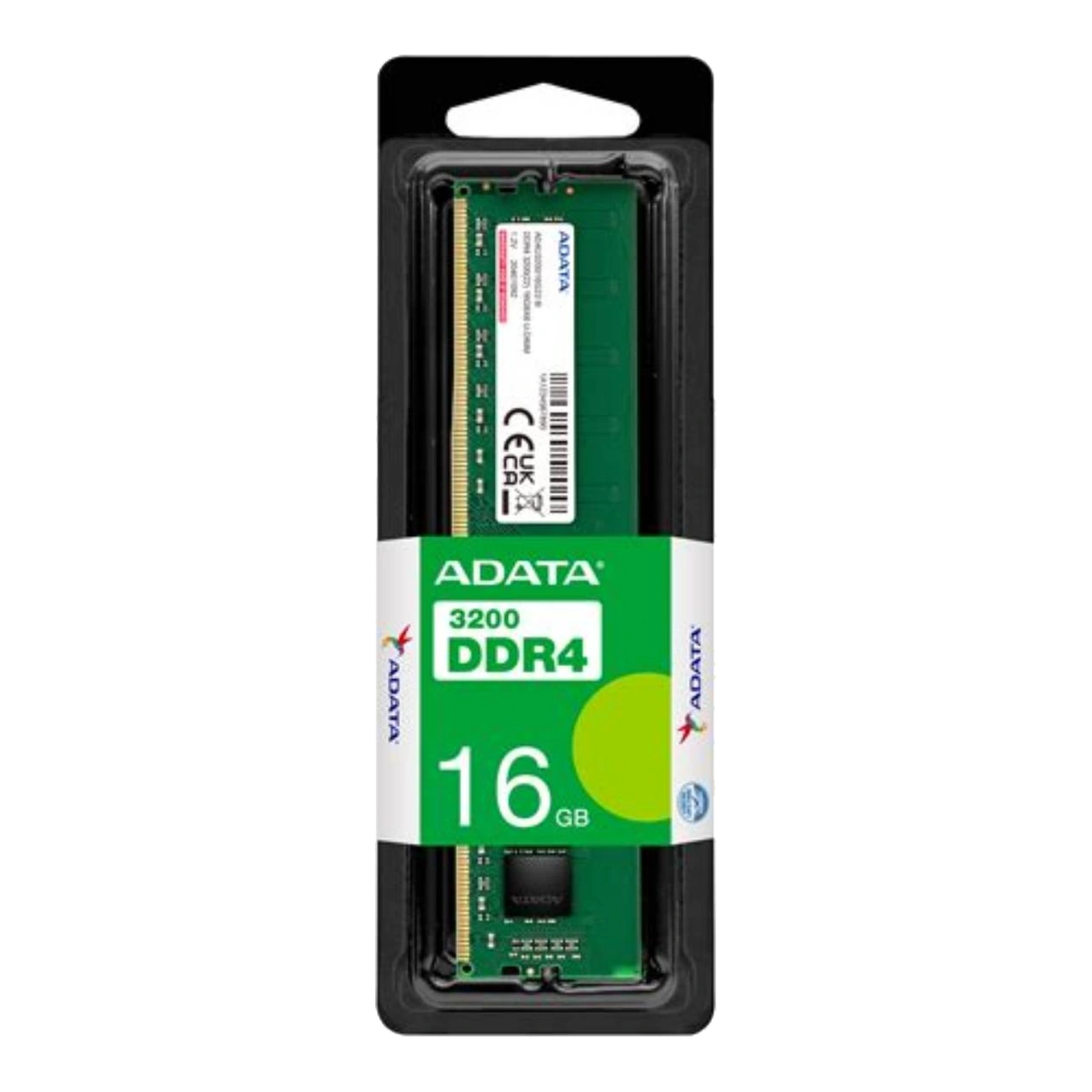
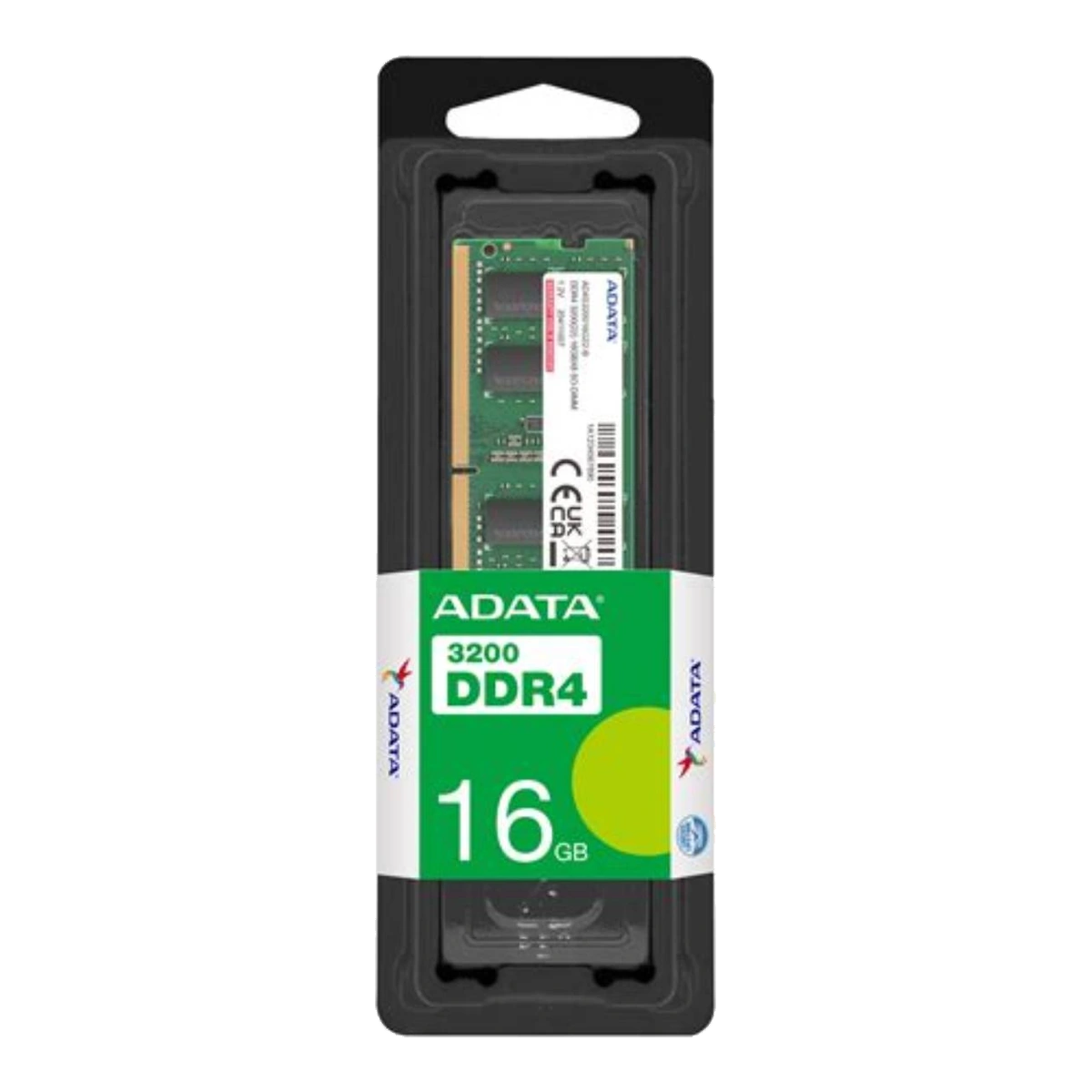
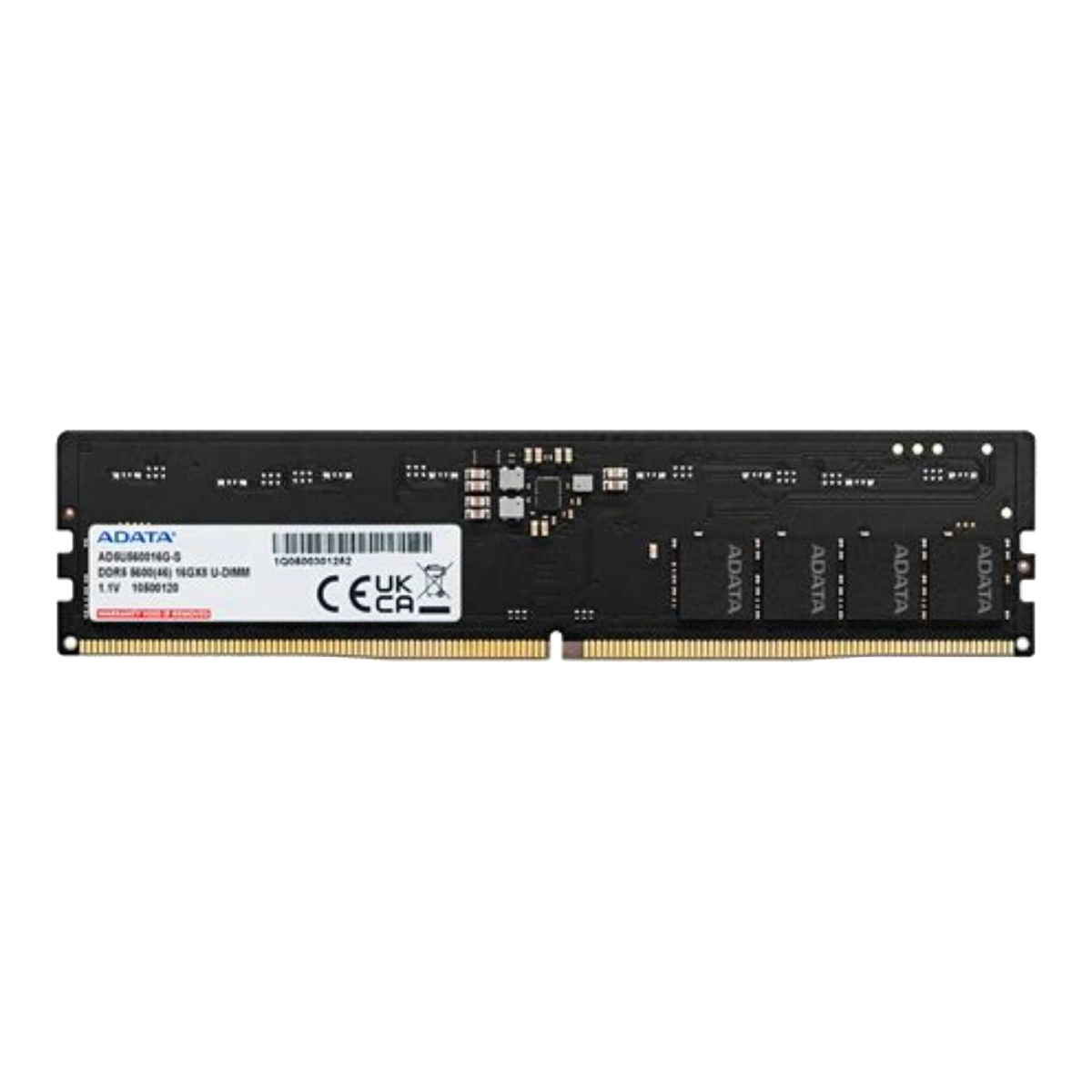
Desktop RAM and laptop RAM are usually not physically interchangeable. A typical consumer desktop motherboard uses a full-length U-DIMM, while an upgradeable notebook commonly uses the shorter SO-DIMM format. Those descriptions identify the module’s physical and electrical format; they do not by themselves confirm that a module will work in a particular computer.
Official ADATA specifications show the size difference clearly. ADATA’s DDR4-3200 desktop U-DIMM is a 288-pin module measuring about 133.35 × 31.25 mm, while its DDR4-3200 laptop SO-DIMM is a 260-pin module measuring about 69.6 × 30 mm.[1][2] ADATA’s DDR5 examples follow the same broad desktop-versus-notebook size pattern: the DDR5-5600 U-DIMM is about 133.35 × 31.25 mm and 288-pin, whereas the DDR5-5600 SO-DIMM is about 69.6 × 30 mm and 262-pin.[3][4] The shorter module is therefore not simply a desktop DIMM with less capacity; it is a different form factor intended for a different socket.
U-DIMM means unbuffered dual in-line memory module. The ADATA consumer desktop examples in this guide are unbuffered and non-ECC.[1][3] SO-DIMM means small outline dual in-line memory module. It is designed for space-constrained systems, including many notebooks and some compact computers. ADATA’s consumer SO-DIMM examples are also unbuffered and non-ECC.[2][4] Do not use “desktop RAM” or “laptop RAM” as the only buying filter, however. Some compact desktops use SO-DIMMs, and some laptops have memory soldered to the motherboard or combine onboard memory with a replaceable slot. The exact system manual or service documentation is the deciding source.
What must match?
First, confirm the module format. A U-DIMM needs a compatible full-size DIMM socket; a SO-DIMM needs a compatible SO-DIMM socket. Do not force a module into a slot because the notch or length does not match.
Second, confirm the DDR generation. “SO-DIMM” does not mean every laptop module is interchangeable: DDR4 SO-DIMM and DDR5 SO-DIMM have different pin counts in the cited ADATA examples—260 versus 262—and require the corresponding system support.[2][4] The same warning applies to desktop modules. DDR4 and DDR5 U-DIMMs may both be described as 288-pin in ADATA’s specifications, but they are different generations and must be matched to the motherboard’s stated memory type.[1][3]
Third, check the processor and motherboard or system limits. Intel tells users to check the processor specification for maximum memory size, memory type, maximum speed and channel count.[5] Motherboard or laptop documentation must then be checked for its own slot count, supported capacity, memory type and population rules. A RAM product page listing a 32 GB or 48 GB module only tells you that the module exists; it does not prove that your computer supports that capacity.[1][3][4]
Fourth, check whether the quoted capacity is per module or total system capacity. If a notebook has one 8 GB onboard memory package and one empty SO-DIMM slot, its upgrade path is different from a notebook with two replaceable slots. Similarly, a desktop advertised with four slots may have a maximum total capacity, maximum capacity per slot, or configuration-dependent speed limits. Use the exact model number and, where relevant, the installed processor.
Speed and slot population
A module’s advertised data rate is not a guarantee that every compatible computer will operate it at that rate. ADATA explicitly notes for its DDR5-5600 SO-DIMM that actual operating frequency is limited by motherboard and CPU support.[4] AMD’s Ryzen 5 7600 specification illustrates why configuration matters: its official page lists different maximum speeds for specified two-DIMM and four-DIMM rank configurations.[6] Treat those numbers only as an example for that processor; check the specification for your own CPU and system.
Follow the manual’s recommended slot order. ASUS’s installation guidance directs users to the motherboard manual for supported memory and socket placement rather than giving one universal sequence for every board.[8] On many four-slot boards the preferred two-module sockets are not simply the first two physical slots, so guessing can produce a non-recommended configuration.
Can you mix RAM modules?
Mixed modules may sometimes boot, but compatibility and the resulting speed or channel operation should not be promised. Differences can include capacity, rank, speed, timings, revision and memory-chip layout. One ASUS motherboard manual permits varying capacities across channels but recommends the same CAS latency and, for optimum compatibility, the same module version or date code from the same vendor.[10] That advice is model-specific, but it supports the safer general buying approach: use a matched kit approved for the intended total capacity whenever practical, especially when filling multiple slots.
A motherboard vendor’s QVL, or qualified vendor list, is useful because it records modules tested with that model and may show supported socket population.[7] It is not necessarily a complete list of every working module. MSI states that memory absent from its compatibility report may still be compatible and that the report is updated over time.[9] Check the current QVL, the motherboard or laptop BIOS support page, and the manual; then match the exact RAM part number where possible.
Quick buying checklist
- Find the exact desktop motherboard or laptop model and installed CPU.
- Confirm U-DIMM or SO-DIMM; do not choose by device category alone.
- Confirm DDR4 or DDR5.
- Check whether memory is replaceable, onboard, or a mixture of both.
- Check slot count, occupied slots, maximum total capacity and any per-slot limit.
- Check supported standard speeds and configuration-dependent limits.
- Check unbuffered/ECC requirements; ordinary consumer modules are not substitutes for every workstation or server module.
- Follow the manual’s slot order and review the current QVL and BIOS notes.
- Prefer a matched kit instead of assuming separately purchased modules will behave identically.
Related catalogue products
Sources
- ADATA — Premier DDR4 3200 U-DIMM Desktop RAM | ADATA (Global)Accessed: 2026-10-23
Supported claim: this desktop U-DIMM is DDR4, 288-pin, 1.2 V, unbuffered, non-ECC, and approximately 133.35 × 31.25 × 3.19 mm; listed module capacities include 4 GB, 8 GB, 16 GB and 32 GB; listed speed is 3200 MT/s.
- ADATA — Premier DDR4 3200 SO-DIMM Laptop RAM | ADATA (Global)Accessed: 2026-10-23
Supported claim: this notebook SO-DIMM is DDR4, 260-pin, 1.2 V, unbuffered, non-ECC, and approximately 69.6 × 30 × 3.5 mm; listed capacities include 4 GB, 8 GB, 16 GB and 32 GB; listed speed is 3200 MT/s.
- ADATA — DDR5-5600 U-DIMM Memory Module DatasheetAccessed: 2026-10-23
Supported claim: the ADATA DDR5-5600 desktop U-DIMM is 288-pin, 1.1 V, unbuffered, non-ECC, approximately 133.35 × 31.25 × 4.61 mm, and offered in specified capacities including 8 GB, 16 GB, 24 GB, 32 GB and 48 GB.
- ADATA — DDR5 5600 SO-DIMM Laptop RAM | ADATA (Global)Accessed: 2026-10-23
Supported claim: this notebook SO-DIMM is DDR5, 262-pin, 1.1 V, approximately 69.6 × 30 × 3.69 mm, unbuffered and non-ECC; listed capacities include 8 GB, 16 GB, 24 GB, 32 GB and 48 GB; ADATA states that actual operating frequency is limited by motherboard and CPU support.
- Intel — How to Find Max Memory Size, Max Speed, and Max Number of Channels Supported by Intel ProcessorsAccessed: 2026-10-23
Supported claim: Intel directs users to the processor specification page for maximum memory size, supported memory type, maximum memory speed and number of memory channels. Processor support is therefore one required compatibility check, separate from the RAM module’s own rating.
- AMD — AMD Ryzen 5 7600Accessed: 2026-10-23
Supported claim: a current official processor specification can state the supported memory type, maximum capacity, channels and different maximum speeds for different DIMM/rank configurations. The Ryzen 5 7600 page, for example, lists DDR5, two channels, up to 128 GB, DDR5-5200 for certain two-DIMM configurations and DDR5-3600 for specified four-DIMM configurations. These figures are an example for that processor, not a rule for all AMD systems.
- ASUS — [Motherboard] How to query (CPU/memory) QVL List?Accessed: 2026-10-23
Supported claim: ASUS provides model-specific CPU and memory QVL lookup instructions and identifies memory QVL fields such as vendor, part number, size, speed and supported socket population.
- ASUS — [Motherboard] How to install DRAM (Memory) on Motherboard?Accessed: 2026-10-23
Supported claim: users should consult the motherboard manual for supported memory, socket placement and installation procedure; ASUS gives model-specific slot-population guidance rather than one universal slot order.
- MSI — [Motherboard] How to Check Memory Support Specifications and Support Report?Accessed: 2026-10-23
Supported claim: the motherboard specification and compatibility report provide supported memory type, capacity, frequency and tested modules; MSI also states that a module absent from the compatibility report may still be compatible and that the report is continuously updated.
- ASUS — TUF GAMING B460M-PLUS (WI-FI) User ManualAccessed: 2026-10-23
Supported claim: this model’s manual allows varying memory sizes across channels but recommends DIMMs with the same CAS latency and, for optimum compatibility, modules of the same version or date code from the same vendor. This is a useful model-specific caution, not a universal promise for every board.